|
Record Overview
|   |
|
Record Overview
| |
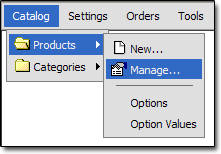
To view your Products, use this menu link:
Below is an overview of each section of a Product Record:
Product Details
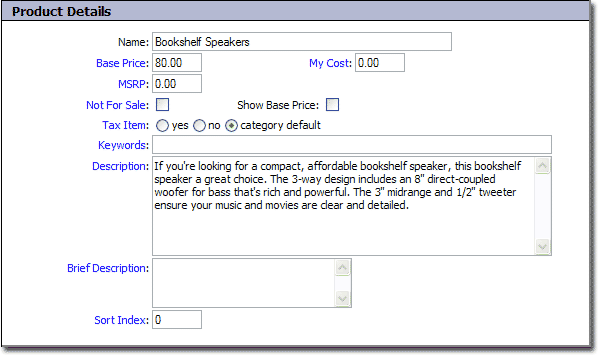
Name
- Name of the product
Base Price
- Price of the product (before options)
My Cost
- The amount that you paid for this item
MSRP
- Manufacturer's suggested retail price
Not For Sale
- Checking this field makes this item not appear in your storefront. It will still appear in the admin interface.
Show Base Price
- Determines whether you want the base price of the product to be displayed in the storefront. This is useful when a product's options determine it's price. In that case, you would set the Base Price field to 0, and would then check this field.
Tax Item
- Determines how you want to handle sales tax for this item. See the "Configuration : Sales Tax" section for more information.
Keywords
- This field is used to specify additional keywords. Adding keywords to this field will increase the likely hood that this item will be found when using the search form.
Description
- A description of the product. The contents of this field are displayed to the customer in the storefront. You can use both plain text and HTML.
Brief Description
- A brief description of the product. The contents of this field are displayed in the checkout form.
Sort Index
- This field is optional. You can use it to sort your products by setting "Order_Products_By" in your store settings to "Sort Index". Products are sorted by the Name field by default.
Category
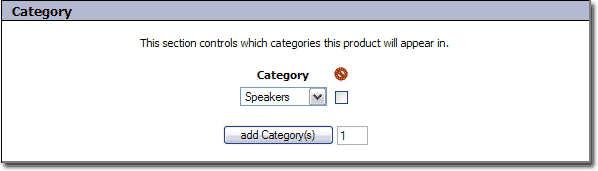
Category
- Contains a list of categories that this product will appear in.
Product Options
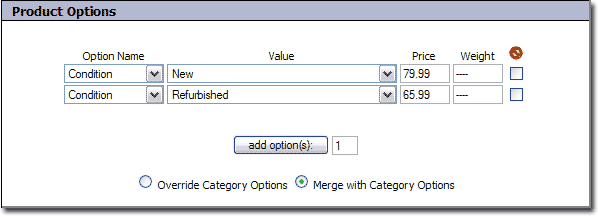
Option Name
- The name of the product option. This is the name of what is being chosen by the customer
Value
- This is the name of the choice that the customer is given.
Price
- This controls the cost of the option
Weight
- This control the weight of the option
Product Images
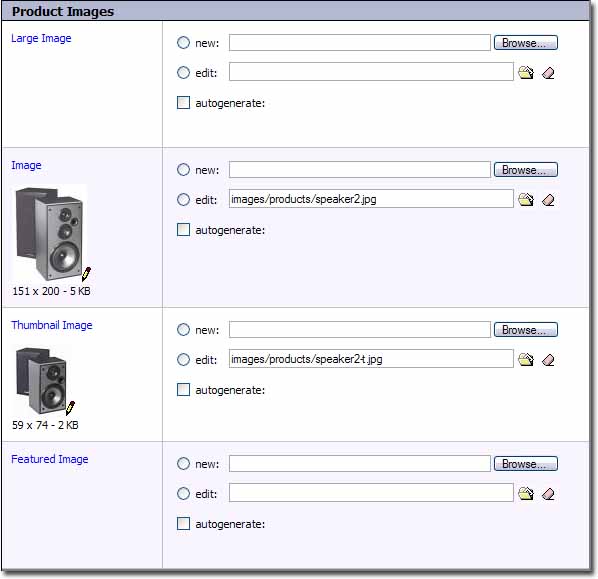
For more information on how to work with images, see the "Working with Images" section of the documentation.
Large Image
- This is the largest image of the item. It is displayed when clicking on the image of the item on the product detail page.
Image
- This is the primary image of the item. It is displayed when you click on a thumbnail image for more information.
Thumbnail Image
- This is the smallest image of the item. It is displayed when you click on the item's category link.
Featured Image
- This image field is not used by default. It can be used to hold an additional image of the item.
Dimensions

These fields control the physical dimensions of the product. They are used primarily in shipping calculations.
Inventory Details
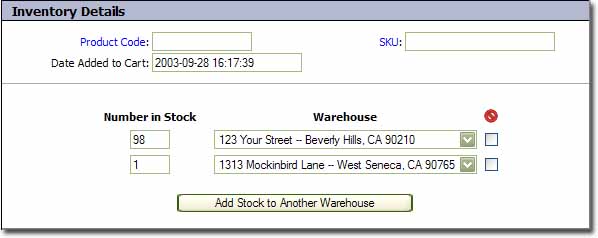
Product Code
- This field can be used to store a unique product code.
SKU
- SKU stands for Stock Keeping Unit and is a number associated with a product for inventory purposes.
Date Added to Cart
- This field contains the date that this product was added to your catalog. It is automatically generated when creating a new product record.
Number in Stock
- Controls the number of units of this item that are in stock, for the given warehouse. This section appears different depending on whether or not you are using the inventory control feature.
Warehouse
- This field allows you to specify which warehouse the stock is located at. For more information, see the Warehouses section of the documentation.
Shipping Details
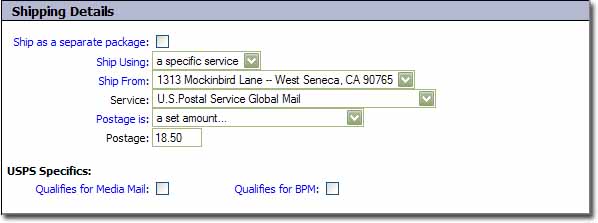
See the "Product Based Rates" topic in "Configuration : Shipping : Rates" for a full explanation of this section.
Sales Agreements
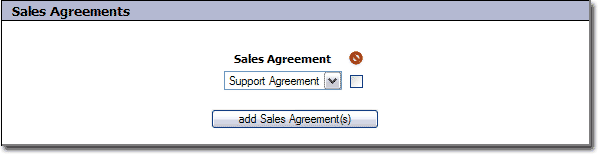
Sales Agreement
- This field is used to add terms which must be agreed to in order to purchase this product. Please see the "Sales Agreements" section of the documentation for more information.