|
Walkthrough
|   |
|
Walkthrough
| |
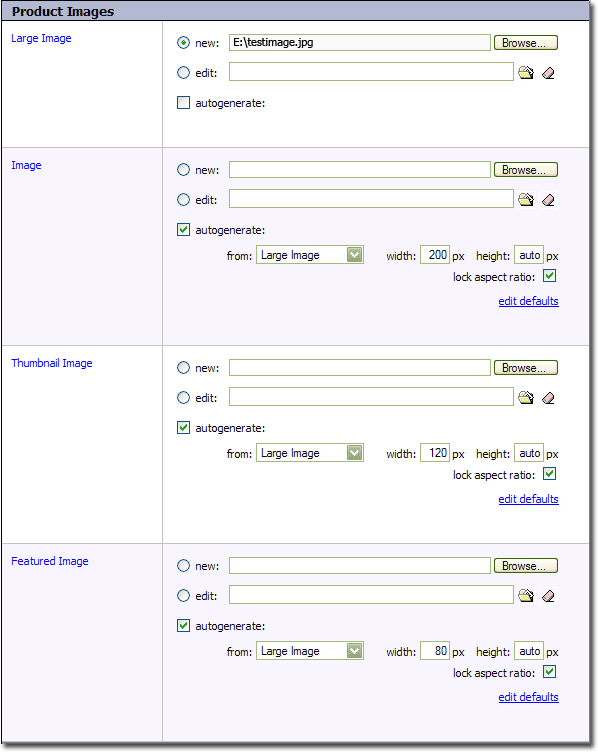
In this section, we will explain how to use autogenerating, using the most common scenario. We will describe how to upload a single product image, and from that image we will autogenerate the other images for that product. Because image quality decreases when you enlarge an image, we recommend uploading the largest image, and auto generating the other smaller images from that image. For this reason, we will be uploading an image for the "Large Image" field, and will autogenerate the "Image", "Featured Image", and "Thumbnail Image" images from the image uploaded with the "Large Image" field.
1. Upload an Image for the Large Image Field
Find an image you can test with, that is between 250 and 500 pixels wide. Then, follow the instructions for uploading an image, but do not click  . Instead, continue below.
2. Set the auto generate field components
a. Check "autogenerate" field
Check the "autogenerate" field within the "Image" image field, which is directly below the "Large Image" image field. When you check this field, the autogenerate components will appear directly below.
b. Set the "from" field
We will be autogenerating this image from the image that we are going to upload in the "Large Image" field. Set the "from" field to "Large Image".
c. Set the "width" field
Click in the width field, and you should notice that the text "auto" appears in the height field. This is because "lock aspect ratio" is checked. For this example, enter 200 for the width.
Repeat steps a, b and c above, for the "Thumbnail Image" and "Featured Image" fields. Use 120 and 80 for the widths, respectively. When done, your "Product Images" section should look like this:
3. Submit Record
Click to upload the "Large Image", and autogenerate the others. You should see something similar to this:

Important Notes:
In our example, we simultaneously uploaded an image, and autogenerated 3 others. You do not have to do this all in one step. At any time, you can autogenerate any image field's image from an image assigned to another image field on that record. Uploading at the same time is a convenience, but not a requirement.