|
Store Settings
|   |
|
Store Settings
| |
The "Store Settings" page allows you to change important information about your store.
1. Navigate to Store Settings
While logged in as an administrator, click the "edit records" link in the "Admin Options" box, on the left hand side of your cart page, to go to the admin page:

2. Click the Store Settings icon
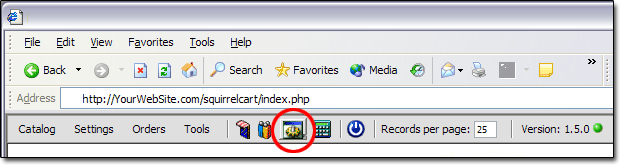
The store settings form will be displayed. If you need more information on a particular field, click on the field's name for help. Once you are done, click "submit record" to submit your changes.
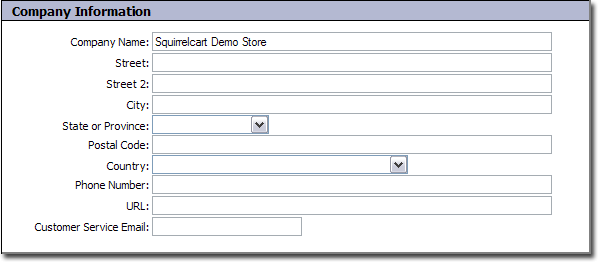
3. Company Information
Squirrelcart uses the information in this section whenever it needs information about your company. This information is used for various features throughout the cart. It is important that you fill this section out as accurately as possible.
4. Order Email Settings
This section controls the emails that get sent when an order is placed.

Email Orders To
- Set this value to the email address you want to have orders mailed to. You can use multiple addresses if you separate them with commas (do not put one at the end!).
Email Order To Customer
- When checked, the customer will receive an email confirming their order.
Email Order To Merchant
- When checked, the merchant will receive an email when an order is placed.
Email Credit Card Number
- When checked, Squirrelcart will include the customer's credit card number in the order email sent to the merchant. This should not be enabled under normal circumstances, as it is not secure. This feature is explained in further detail in the payment section of the documentation.
Transpose Number
- This field is only displayed when "Email Credit Card Number" is checked. This number is added to the credit card number before it is entered into the order email sent to the merchant.
5. Security Settings

Authorized Hosts
- We recommend you leave this blank under normal circumstances. Set the value equal to a comma separated list of all authorized host names that can submit data (add items to cart, etc). Do not add a comma at the end of the list. If you don't want this security option, leave "Value" blank. If left blank, authorized hosts will default to what you specify as your www_root and secure_root in the config file. This is the default configuration.
Min Username Length
- minimum length for a username.
Min Password Length
- minimum length for a password
Forgotten Password Limit
- Set value equal to the number of times you want someone to be able to submit the forgotten password form, in an attempt to be emailed a new password. if you leave it blank, the value will default to 8.
Session Timeout
- The value for this field should be a number equaling the amount of minutes a customer can be idle before their cart is abandoned. This number is also the amount of time that the cart will wait before restocking items that where added to a cart but never purchased. This only happens when "Use Inventory Control" is enabled. The default value for this field is 180.
Collect CVV2/CVC
- if checked, the cart will prompt the customer for their CVV2/CVC code.
CVV2/CVC is Required
- this forces the customer to enter their CVV2/CVC code in order to submit an order.
6. Inventory Control - Inventory control has it's own section in the documentation.

Use Inventory Control
- this field toggles inventory control on or off.
Out of Stock Behavior
- This fields controls how (or if) a product will be displayed in the store catalog if it is out of stock AND Inventory Control is enabled.
Out of Stock Indicator
- This field controls what is displayed to the customer in place of or addition to the "add to cart" button, if the item is out of stock. The field "Out of Stock Behavior" will control whether or not this text is displayed at all. This field will except text or HTML.
7. General Settings

Currency Symbol
- this field contains the currency symbol that will be displayed throughout your store.
Weight Symbol
- this field contains the weight symbol that will be displayed throughout your store.
Order Number Format
-This field controls the format of your order numbers. Default value for this field is "Random". When set to "Random", the cart uses the Unix timestamp at the time of the order. When set to "Custom", the cart uses the value of the "Next Order Number" field, and increments the order numbers by the value of the "Increment by" field.
Bread Crumb Separator
-This is the text or HTML that you want to use to separate each link in the bread crumb navigation. This is the navigation you see in the store when you are browsing through categories, and looks like this example: Product Catalog : Books : Fiction
Base Price
-This value should be text or HTML that you want to display before the base price of an item in the cart.
Order Categories By
-This is the field that the categories will be sorted by in the store. If left blank, it will default to the category name.
Order Categories How
-This can be set to Ascending or Descending
Order Products By
-This is the field that the products will be sorted by in the store. If left blank, it will default to the product name.
Order Products How
-This can be set to Ascending or Descending
Products per Page
-This is the default value for the number of products to show on a single page. This can be overridden at each category.
Products per Row
-This field controls how many products will be displayed in a table row when viewing products in a category, before dropping to the next row.
Subcategories per Row
-This field controls how many sub categories will be displayed in a table row below the main category.
Previews per Page
-If you are using the product preview feature, set this number to the number of items you would like to have displayed in the product preview. This is the navigation that is displayed by default to the right of a product's detailed description, and lists links and thumbnails for other products in the category, for easier navigation.
Do Not Expand Categories
-This field controls whether or not parent categories are expanded when clicked on in the Product Catalog navigation section of the cart. This section appears to the left of the page by default. The default setting for this field is unchecked.
Records per Page
-Set value equal to the number of records you want to display on a single page in the admin section.
Retain Filter Settings
-This setting controls how long the filter settings for a given table are retained. The filter settings appear above records that have a relationship with other records. For example, in the Products table, you will have the option to filter the records displayed "by Category".
If this box is checked, the filter settings for each table will be retained for your entire visit to the cart.
If this box is unchecked, the filter settings will remain until you leave the current table.
New
-Value should be equal to the length in days to consider a product new. This is what triggers whether the "new" image shows up when viewing products, and what products appear in the "New Products" category.
New Products per Preview
-This field controls how many products will be displayed in the "New Products Preview" section of your homepage.
New Products per row
-This field controls how many products per row are displayed in the "New Products Preview" section of your homepage.
Maximum Quantity
-The default for this field is 1,000. Leave blank to accept the default. This field controls the maximum quantity allowed for a single item when it is added to the cart. The main purpose of this setting is to avoid ridiculous orders for millions of items, which could potentially cause problems with payment systems.
Important Note: Do not include commas in your value!!!
Required Field Indicator
-This is what will be displayed after a required field when a user is creating or modifying an account, or entering their shipping or billing information. Default is blank, which causes the cart to use the default image. This field can be set to text or HTML.
Missing Field Indicator
-This is what will be displayed after a missing field when a user is creating or modifying an account, or entering their shipping or billing information. Default is blank, which causes the cart to use the default image. This field can be set to text or HTML.
Default Theme
-This is the theme that users will see when they use your store. Themes are a way of customizing the look of your cart. They are located in the "squirrelcart/themes" folder.
Add to Cart Behavior
-This field determines what will happen after a customer adds an item to the cart. If "go to checkout" is selected, than when you add an item to the cart, the customer will be taken to the checkout page. If "stay on product page" is selected, the customer will stay on the same page as from which they added the item to the cart, and they will get a message at the top of the page indicating that the item was added.
Show Order Status
-This field controls whether or not customers will see the "Order Status" link in the account options after they login. If you check this box, they will see the link. If you uncheck it, they will not.
Force User Creation
-This field defaults to disabled. If enabled, when a customer checks out, and is not already logged in, they will be presented with the "New Account Form". This makes user creation mandatory for a purchase.
Use Version Control
-Enables or disables the use of Version Control. When enabled, your installation of Squirrelcart will compare the installed version to that of the most recent available, and indicate if an update is available.
Delete Unused Images
-By default, this field is checked. When checked, the cart will:
Delete images associated with Products, Categories, and Product Options when the record using them is also deleted
Delete images associated with Products, Categories, and Product Options when a new image is uploaded, and the original image is no longer associated with any other records
If you uncheck this field, the cart will not delete unused images.
Squirrelcart Logo
-This field controls the appearance of the link back to Squirrelcart.com at the bottom of your cart page.
8. Missing Images
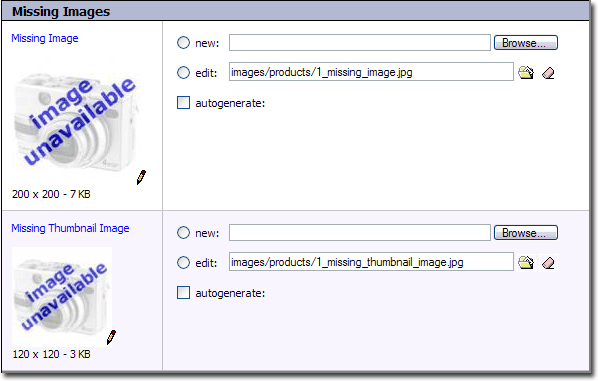
When a product does not have an associated image, or thumbnail image, these images are displayed in their place.
9. PHP Extensions
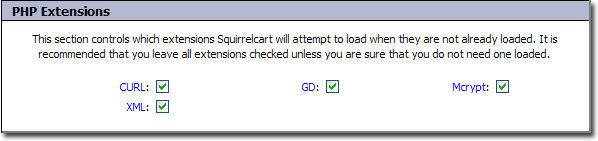
Some of the advanced features of Squirrelcart require certain PHP Extensions to function. This section controls whether or not the cart will attempt to load an extension dynamically, if it is not already loaded with PHP.
If an extension is checked, and it is not already loaded, Squirrelcart will try to load it. We recommend that you do not modify this section under normal circumstances.
10. Additional Script Execution
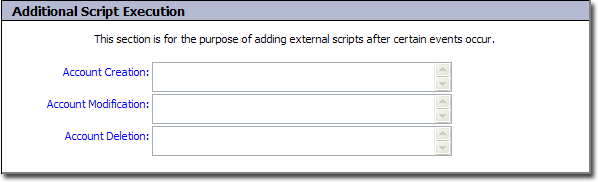
This section is used to allow Squirrelcart to tie into other scripts when certain events occur. This is an advanced feature, and is not supported. We recommend you do not modify this section under normal circumstances.