|
Crop
|   |
|
Crop
| |
Crop crops the image based on a rectangular selection
1. Open Image
To crop an image, open it in the image editor.
2. Click the rotate icon
The crop icon looks like this:

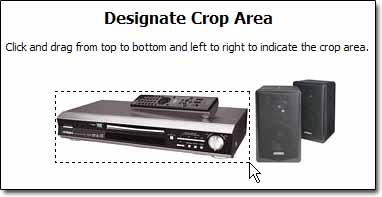
3. Designate crop area
Click and hold down on the spot that you would like to use as the top left corner of the new image. Drag down and to the right, and let go off the mouse button when the box defines the correct crop area.
4. Preview Changes
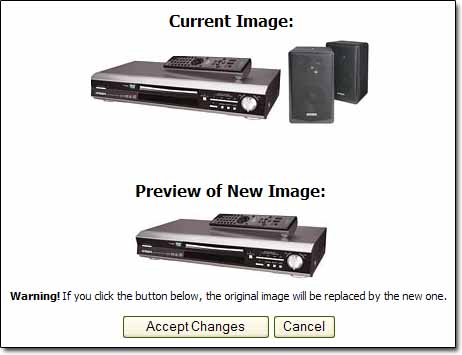
Click the  button.
You should see something similar to below:
5. Accept changes
The cropped image will appear immediately below it's original format. If it looks OK, click the  button to save changes.