|
Adding Options to Products
|   |
|
Adding Options to Products
| |
Product Options can be added for a single product, or all products in a specified category.
1. Add Product Option
Before you can add options to a product, you will need to define them. The product option is the name of the option, such as "size" or "color". Add your Product Option records using the Product Options section of the Record Overview topic as a guide.
2. Add Product Option Values
If you have chosen a "Select Input" option type, you will also need to define the choices that the customer sees for a particular option. For example, "small, medium, large" or "red, white, blue". Each choice needs a corresponding Product Option Value record. Create them using the Product Option Values section of the Record Overview topic as a guide. If you are using a "Text Input" or "Textarea Input" option type, you can skip this step.
3. Edit Product OR Category record
If you want to make the options appear for every product in a category, put the category in edit mode. If you wish to make the options appear for a single product, put that product in edit mode.
4. Add options to record
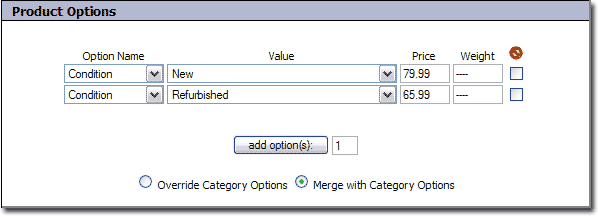
The process for adding the options at the product and category level is identical.
Select the Product Option you wish to add using the "Option Name" field.
If you are adding a "Select Input" option type, select the choices you want to give to the customer using the "Value" field. If you are adding a "Text Input" or "Textarea Input" option type, you can leave the Value field blank. Click "add option(s)" if you need to add more fields.
If you want the price of the product to change when the option is chosen, enter the cost of the option in the "Price" field. If you want the price to decrease, you can enter a negative number.
If you want the weight of the item to change when the option is chosen, enter the weight of the option in the weight field.
5. Override or Merge with Category Options
If you are adding your options on a product record, you will see an extra field at the bottom of the Product Options section. It is used to determine how to treat options that are specified for this Product's Category. If you want both the category's options AND the product's options to appear, select the "Merge with Category Options" radio button. If you want to override the category options, and just display the product options, select the "Override Category Options" radio button.
6. Click 