Shipping Rules are records you create in the control panel. The are used to offer manually created shipping rates that will only be offered to the customer when certain conditions are met. These conditions are defined using Squirrelcart's Rule System. If more than one shipping rule applies to a given order, Squirrelcart will only offer the rates for the rules that have the largest priority number.
Here is an example scenario:
In this example, let's assume that you have 5 shipping rules created in your control panel.
These 3 rules are assigned a priority of 1:
- Offer free shipping for orders over $30 via USPS Priority when the Weight Total of the order is greater than 0
- Offer USPS OverNight for $15.00 when the Weight Total of the order is greater than 0
- Offer FedEx Ground for $8.00 when the Weight Total of the order is greater than 0
These 2 rules are assigned a priority of 2:
- Offer USPS Global for $25.00 when the Weight Total of the order is greater than 0
- Offer FedEx International for $32.00 when the Weight Total of the order is greater than 0
Now, if the Weight Total of the order is 20lbs, then all 5 of these rules apply to the order. Only the last 2 rules are actually used to offer rates to the customer, because they have a larger priority number (2) then the other 3 rules, and therefore take precedence.
- Open the control panel
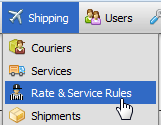
- Click the Shipping Rules menu link
- Fill out the form, and Click
 . Use the Record Overview below as a guide.
Details
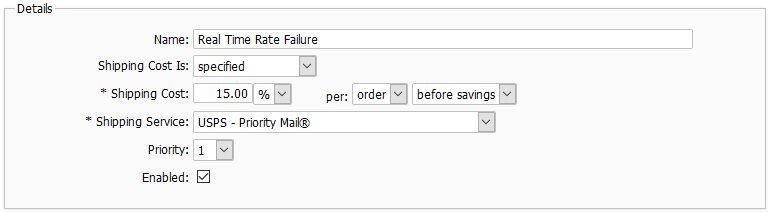
Name
This is for your use only. The customer does not see this.
Shipping Cost Is
Possible Values:
- specified - This is the default value, used to specify a price during checkout.
- to be determined - This allows you to show shipping costs as TBD during checkout, for cases where you wish to contact the customer to handle shipping costs after their order has completed.
Shipping Cost
This is the amount to charge for shipping if the condition is met. You may enter either a decimal only in this field. If you wish the amount to be an actual currency value, set the 2nd field to your currency symbol. If you wish to charge a percentage, set it to a % sign. The 3rd field is described below:
per (not labeled)
This field controls how the shipping cost will be applied.
Possible Values:
- per order - if set to per order, the shipping cost will be applied once, for the entire order
- per item - if set to per item, the shipping cost will be applied once for every item in the order
Shipping Service
This field controls the shipping method that the rate will be offered for
Priority
This field controls the priority that the shipping rule will have. The larger the number, the more priority it will have.
Enabled
This field controls whether or not the rule will be enabled, and can be unchecked to temporarily disable a shipping rule.
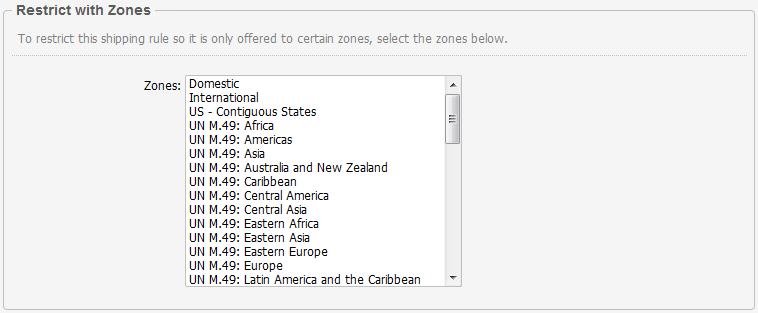
Restrict with Zones
Zones can be used to group together address locations. You can restrict a rate & service rule so that it is only enabled for certain zones by selecting them here. Zones can also be used to restrict shipping couriers and shipping rules. See the Zones topic in this section for more information.
Restrict with Rules
Rules can be used to specify detailed conditions that when met will result in the rate & service rule being enabled. For example, if you only want a particular rate & service rule to be offered when the order total is over $1,000, you can assign a rule to this section to accomplish that. See the Managing Your Store > Rule System section of this documentation for more info.

 |
Zone and rule restrictions can be added at the courier and service level as well, which will also control when that courier's services are enabled. |
|
If you create rules that are based on address information, don't forget that the Customer rule type only applies to the information in an actual Customer account. If you want a shipping rule to apply based on address information regardless of whether or not the customer has an account, you should use the Order (in progress) rule type. |
© 2001-2015 Lighthouse Development. All Rights Reserved.