Instructions
- Click the Products > Manage link
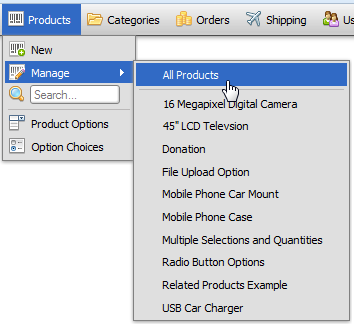
- To add a new product, click
 . To modify an existing one, click the pen icon at the beginning of it's record row. (You can also click anywhere on the row to edit a record)
- Fill out the form fields, using the field descriptions below as a guide.
- Click
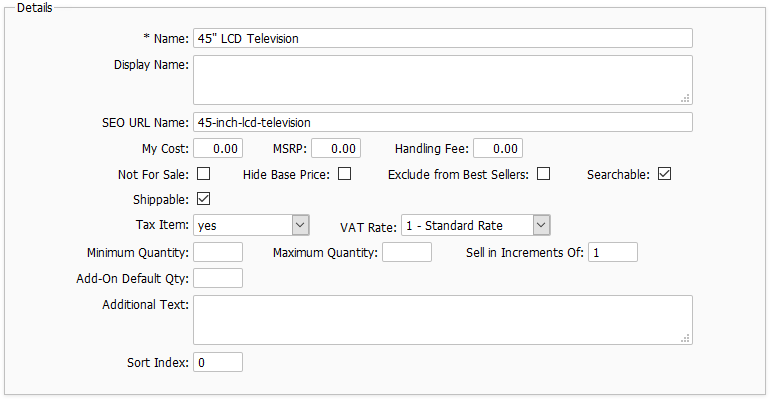
Name
Name of the product - no HTML is allowed in this field
Display Name
This field is optional. If you wish to use a different name for this product when displayed in HTML, enter it here. This field supports HTML and plain text.
SEO URL Name
This field controls how this product's name will appear in URLs when the SEO URLs feature is enabled. Leave blank to take the default value, which is equal to this product's name with invalid characters removed.
My Cost
This field is only for your reference. You can use it to track how much you paid for the product.
MSRP
This field is not used by default. You can use it to store the Manufactures Suggested Retail Price of the product.
Handling Fee
This field is used to add a handling fee when this item is added to the cart. For more information, see the Handling and Order Fees topic.
Not For Sale
Checking this field will hide this item in your storefront.
Hide Base Price
Unchecking this field will hide the base price in the storefront.
Exclude from Best Sellers
Checking this field will prevent this item from appearing as a best seller, and as a "also ordered" product.
Searchable
Unchecking this field will cause the product to not be returned in searches.
Shippable
When checked, the product is considered to be one that physically ships to the customer's shipping address.
Tax Item
This field controls whether or not you will collect tax for this product.
VAT Rate
If VAT is enabled, this controls the rate that will be charged for this product.
Minimum Quantity
This field is used to enforce a minimum number of items to be ordered. Leave blank for no restriction.
Maximum Quantity
This field is used to enforce a maximum number of items to be ordered. Leave blank for no restriction.
Sell in Increments Of
Use this field to enforce selling an item in increments.
Add-On Default Qty
When a product is shown as an add-on for another product, this can be used to specify a default quantity.
Additional Text
This field is not used by default, but can be added to templates to show additional info.
Sort Index
This field can be used to assist in sorting the product records for display.
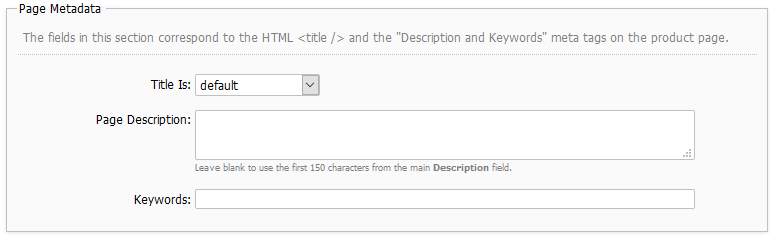
Page Metadata
Title Is
This field allows you to specify a custom page title that will be seen when this product is clicked on.
Page Description
This field is used to populate the description meta tag, and the description of the product seen at checkout.
Keywords
This field is used to populate the keywords meta tag, and to assist customers when searching for this product.
Pricing
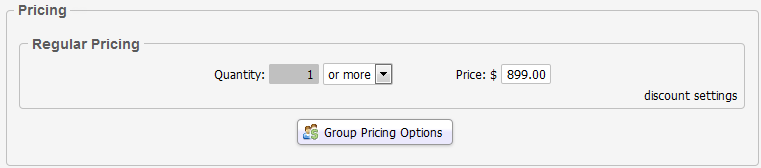
For regular pricing, enter a price in the Price field. This becomes the product's Base Price. This section can be used to offer quantity based discounts to customers and group members. For more information, see this topic.
Description
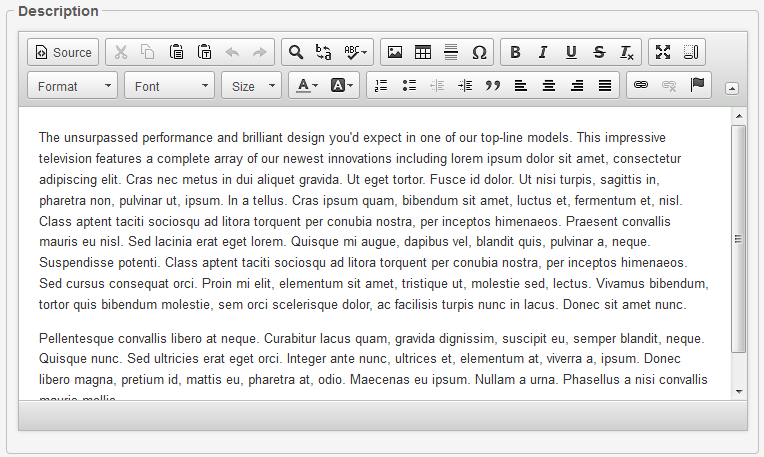
This is the main description of the product. You can use HTML in this field.
Tooltip

Images
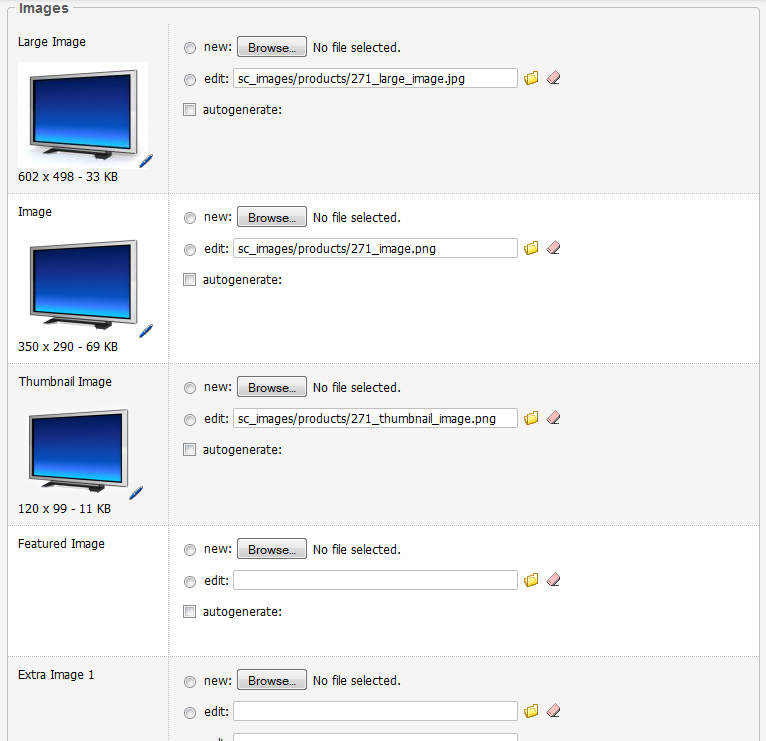
Large Image
This field is used to assign the largest image of this product to the product record. This image is seen when the customer clicks on the regular size image on the product detail page.
Image
This field is used to assign the regular image of this product to the product record. This image is seen on the product detail page.
Thumbnail Image
This field is used to assign the smallest image of this product to the product record. This image is seen on the product thumbnail view.
Featured Image
This field is not used by default, but can be added to templates if needed.
Extra Image 1 - 8
These fields can be used to add extra images, which will appear as thumbnails below the main product image on a product's page.
Attachments

This section can be used to add one or more informational files to help the customer when shopping for this product. For example, you could add PDF specification sheets, or other informational files.
Attachments appear on the product detail page, in the Attachments section:

Category
Product Options

Product Dimensions

This section is used to specify product options for this product. This is explained in detail in the Product Options section of the documentation.
Inventory
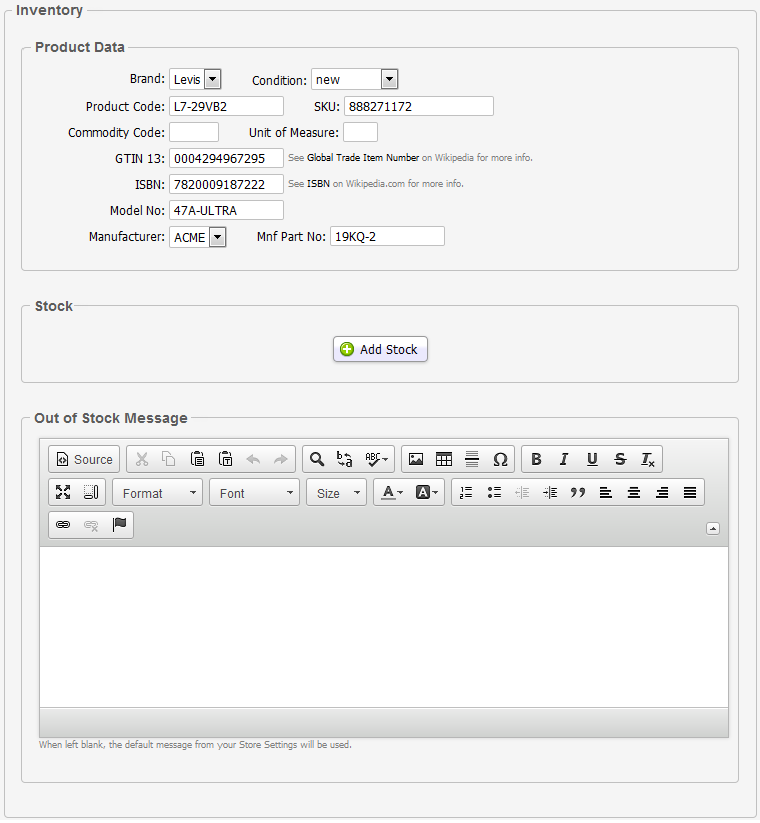
Product Data
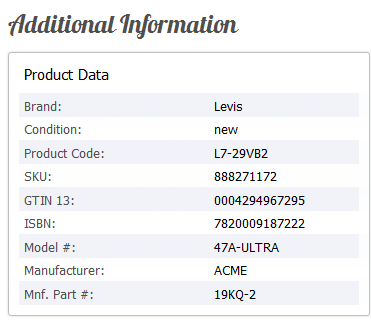
All the fields in this section are optional. Information entered here is used in the storefront as follows:
- for product searches
- to populate Schema.org microdata (see SEO topic for more info)
- on the product page, as Product Data:
Stock, and Out of Stock Message
These sections only appear when the Inventory Control feature is turned on. These sections are used for inventory tracking purposes, and are explained in detail in the Inventory Control topic.
Shipping Details
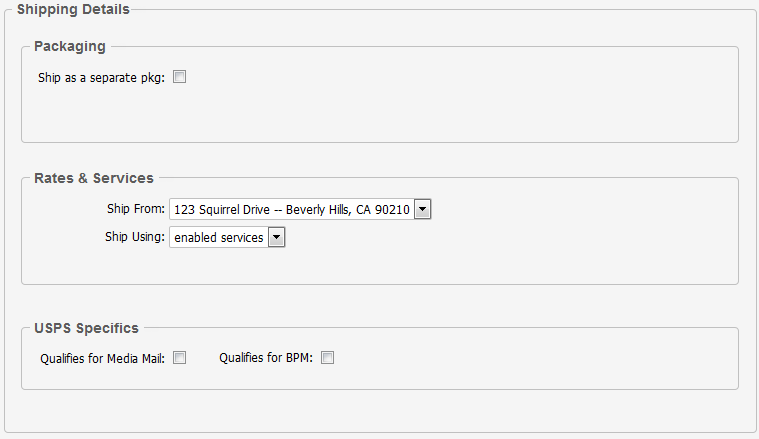
This section is covered in the Configuration > Shipping section of this documentation.
Related Products
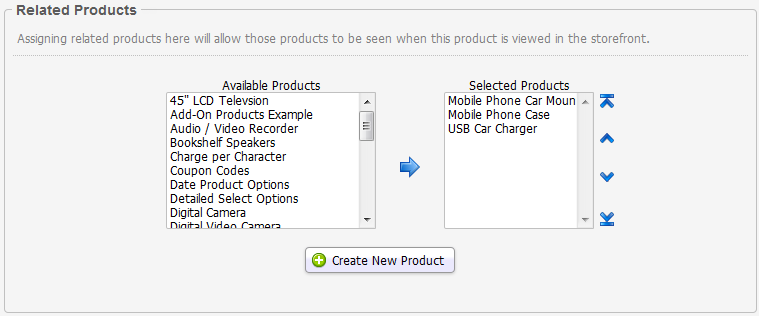
This section is used to assign related products. For example, if the product record you are editing is for a cell phone, you could add a cell phone charger as a related product. For more information on how to use this feature, see the Related Products topic in this section.
Sales Agreements
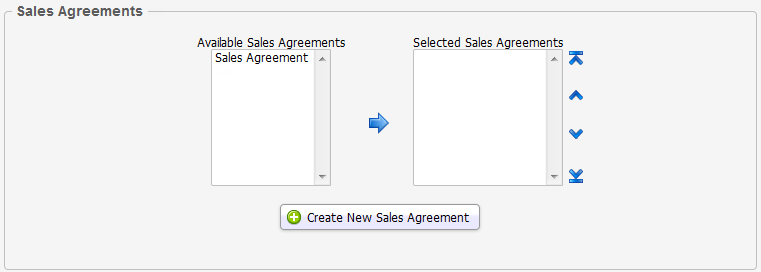
This section is used to assign sales agreements to this product.
© 2001-2015 Lighthouse Development. All Rights Reserved.