Overview
Squirrelcart allows you to control the format of your URLs that link to products, categories, and other pages. We will refer to this feature with the term SEO URLs, (SEO stands for Search Engine Optimized). Here are 3 examples of product page URLs based on how you have your SEO URL settings configured:
Query String URL: (OK)
http://www.example.com/store.php?crn=180&rn=279&action=show_detail
This method has data in the URL that helps Squirrelcart determine what to show your customer. That data is only meaningful to your web server.
Search Engine Optimized URL: (better!)
http://www.example.com/store.php/products/deluxe-bookshelf/
This method removes the query string data and replaces it with more meaningful information. If this page was indexed in a search engine, searching for "deluxe bookshelf" is more likely to generate a result linking to this page.
Search Engine Optimized URL - Advanced: (best!)
http://www.example.com/products/deluxe-bookshelf/
This method is identical to the previous one with the exception that the storefront page is no longer present (store.php by default).
Query String URLs
Requirements:
None
Setup Instructions:
We recommend using SEO URLs when possible. If your server doesn't support them, here's how to configure Squirrelcart to use query string URLs.
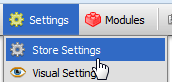
- Open your Store Settings page.
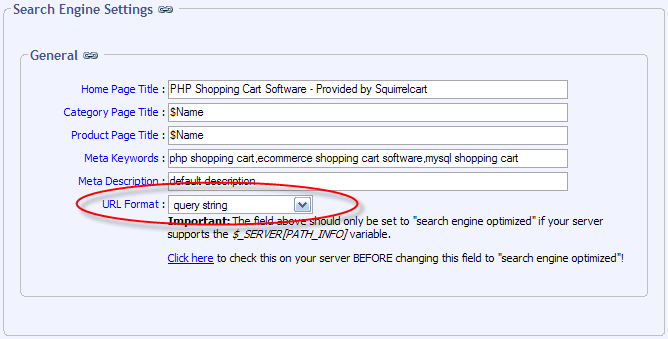
- Change the URL Format field in the section titled "Search Engine Settings" to query string:
- Click

SEO URLs
 |
By default, new installations of Squirrelcart v2.5.0 and newer are automatically configured to use SEO URLs if support for them is found during the installation process. |
Requirements:
Your server must support the $_SERVER['PATH_INFO'] variable OR support both the $_SERVER['SCRIPT_NAME'] and $_SERVER['REQUEST_URI'] variables.
Precautions:
 |
When enabling SEO URLs, you are changing the URL structure for Squirrelcart content. Because of this, any code you've written yourself in your storefront must use absolute URLs. If you are using relative URLs in your Squirrelcart storefront, those URLs will not be valid. This will result in broken links, broken images, etc... See the Broken Images and Links section at the end of this page for more information. |
Overview
Enabling SEO URLs will turn your URLs from something like this:
http://www.example.com/store.php?crn=180&rn=279&action=show_detail
To this:
http://www.example.com/store.php/products/deluxe-bookshelf/
Setup Instructions:
- Open your Store Settings page.
- Locate the URL Format field in the section labeled Search Engine Settings. Below that field, you should see a message that says "Click here to check this on your server....". Click that link to open the SEO URL support test:
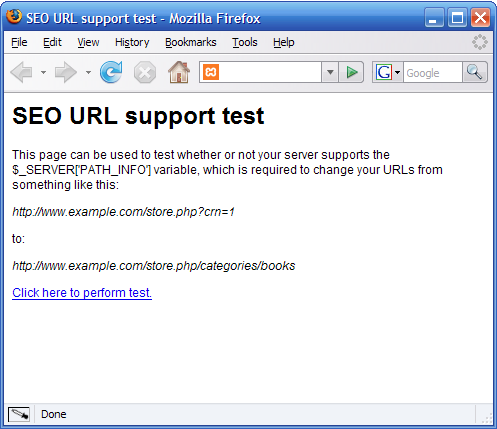
- Click the link labeled "Click here to perform test".

- If the test passed, you will see the message above and can continue to the next step. If you do not see this message, your server does not support PATH_INFO and you should stop here. If you contact your webhost, they may be able to add support for PATH_INFO for you.
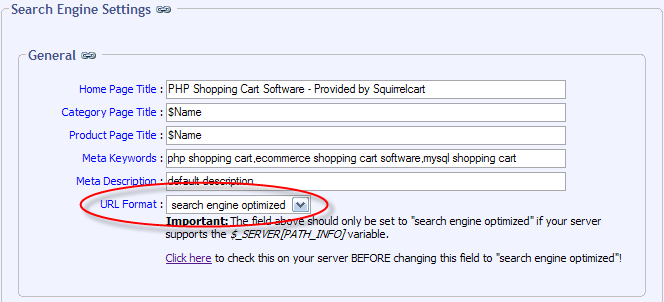
- Change the URL Format field in the section titled "Search Engine Settings" to search engine optimized:
- A new section will appear labeled SEO URLs.
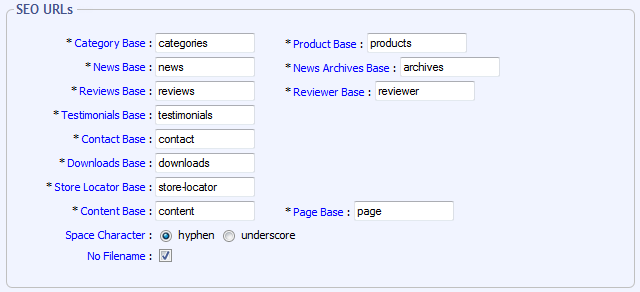
The fields in this section control certain aspects of your URLs. You can leave the defaults and skip to the next step. If you prefer to change these settings, here is what each one does:
Category Base
This is the part of your category URLs that precede the name of the category. The default value for this is "categories", which would be used in a category URL as follows:http://www.example.com/store.php/categories/books
Product Base
This is the part of your product URLs that precede the name of the product. The default value for this is "products", which would be used in a product URL as follows:http://www.example.com/store.php/products/coffee-table
News Base
This setting is only present when the News module installed. This is the part of your news URLs that precede the name of a news post. The default value for this is "news", which would be used in a news post URL as follows:
store.php/news/2008/11/25/post-name
http://www.example.com/store.php/news/2008/11/25/post-name
News Archives Base
This setting is only present when the News module installed. This is the part of your news URLs that represents the term "archives". The default value for this is "archives", which would be used in your news archives URL as follows:
http://www.example.com/store.php/news/archives
Reviews Base
This setting is only present when the Reviews module is installed. This is the part of your review URLs that precede the name of the product. The default value for this is "reviews", which would be used in a review URL as follows:
http://www.example.com/store.php/reviews/product-name
Reviewer Base
This setting is only present when the Reviews module is installed. This is the part of your reviewer URLs that precede the record number of the reviewer. The default value for this is "reviewer", which would be used in a reviewer URL as follows:
http://www.example.com/store.php/reviews/reviewer-382
Testimonials Base
This setting is only present when the Testimonials module is installed. The default value for this is "testimonials", which would be used in your testimonials page URL as follows:
http://www.example.com/store.php/testimonials
Contact Base
This setting is only present when the Contact module is installed. The default value for this is "contact", which would be used in your contact page URL as follows:
http://www.example.com/store.php/contact
Downloads Base
This setting is only present when the Download Delivery module is installed. The default value for this is "downloads", which would be used in your download page URL as follows:
http://www.example.com/store.php/downloads
Store Locator Base
This setting is only present when the Store Locator module is installed. The default value for this is "store-locator", which would be used in your store locator page URL as follows:
http://www.example.com/store.php/store-locator
Content Base
The default value for this is "content", which appears in links to your own pages (via content records) as follows:
http://www.example.com/store.php/content/about-us
Page Base
This is the part of your URLs that represents the term "page", used in links to additional pages. The default value for this is "page", which would be used in a URL as follows:
http://www.example.com/store.php/categories/books/page-4
Space Character
This controls the default character used in place of a space in your URLs. The default value for this is "hyphen":
http://www.example.com/store.php/products/this-is-a-long-product-name
Setting this to "underscore" would make the above URL look like this:
http://www.example.com/store.php/products/this_is_a_long_product_name
No Filename
This field can be checked to remove the storefront page name from most of your URLs.
Do not check this field without following the instructions in the Setting up SEO URLs (advanced) section below! -
Click
Customizing
You can control how product, category, and news post names appear in your URLs by modifying the SEO URL Name field in each respective table in your control panel. Here's an example of this field on a category record.

Redirects
If a user tries to load a page using a query string URL after you have enabled SEO URLs, Squirrelcart will issue a redirect (HTTP code 301) to the equivalent SEO URL. This will ensure search engines know the page has moved to a different location, and help to avoid penalties for duplicate content.
If you decide to change the SEO URL Name field for a particular item (see Customizing section directly above), and a URL is requested using the prior value you had stored in that field, Squirrelcart will issue a redirect to the new URL.
Example: Using the image above, the URL to the "Compact Discs" category is:
http://www.example.com/store.php/categories/compact-discs
Now, 3 months after that page has been indexed by a search engine you decide to change your URL to this by changing the SEO URL Name field to cds:
http://www.example.com/store.php/categories/cds
If the old URL is requested by a user, they will automatically be redirected to the new URL.
SEO URLs (advanced)
Overview
This is an additional procedure you can follow to remove the storefront page from your URLs after you've followed the steps above to enable SEO URLs. This is an advanced topic, and caution should be taken when attempting this procedure.
This will change your URLs from something like this:
http://www.example.com/store.php/products/coffee-table
To this:
http://www.example.com/products/coffee-table
Requirements
- PATH_INFO support
- Support for .htaccess files
- Support for either "mod_rewrite" OR either of the directives: ForceType, SetHandler
Setup Instructions Explained
There are 2 ways to handle this. Both require .htaccess file support. The first method uses mod_rewrite, and the second uses either ForceType or SetHandler directives. Follow the section below that corresponds to what your server has support for. If you aren't sure, we recommend you follow the mod_rewrite instructions first. If they do not work, then try the "ForceType/SetHandler" instructions.
Setup Instructions Using Mod_Rewrite
Mod_Rewrite is a feature built into Apache web servers that allows you to transform the URL requested by a client into a different URL without the client seeing their URL change in their browser. With this method, when the customer requests a URL like:
http://www.example.com/products/coffee-table
Mod_Rewrite will change their request to include your storefront page without changing the URL in their browser:
http://www.example.com/store.php/products/coffee-table
- Follow the instructions above in the section titled Setting up SEO URLs
- Create a blank file with the name .htaccess in the same folder that contains your storefront page.
- Using a text editor, paste the following code into your blank .htaccess file:
RewriteEngine On
RewriteRule ^(products|categories|content|news|reviews|testimonials|contact|downloads|store-locator|auth)/?(.*)$ store.php/$1/$2 [L] - If you've renamed your storefront page from it's default name of store.php, change that string from "store.php" to your actual storefront page name.
- Save the file
- Try loading your storefront page in a browser to confirm that your .htaccess file is not causing any errors. If you receive an Internal Server error, you either have a typo in your htaccess file OR your server doesn't support mod_rewrite. If you believe the problem is the latter, stop here and try the instructions further down labeled "Instructions Using ForceType/SetHandler".
- Try loading the following URL (changing the domain name in the example to match yours):
http://www.example.com/products/
If you receive a page looking like your storefront page but with a red 404 error in the center, then the process worked. The 404 error appears because you aren't linking to a specific category. If you receive an Internal Server Error, your server probably doesn't support mod_rewrite - stop here and try the instructions below for ForceType/SetHandler. - Now that you have your .htaccess file configured and working properly, you just need to tell Squirrelcart to remove the storefront page from the URLs that it generates. To do this, check the No Filename field on your Store Settings page, in the section labeled SEO URLs and click the "save changes" button.
- You're done! Head to your storefront page and click your product and category links to make sure they are working OK.
Setup Instructions Using ForceType/SetHandler
ForceType is a directive you can use in an htaccess file to force a file to be treated as a particular MIME type regardless of it's file extension. This method works by tricking your server into serving files named "products" and "categories" (with no file extension) into opening as PHP files. These file names will look just like directory names in your URLs, and your customers won't know that they are actually PHP pages.
- Follow the instructions above in the section titled Setting up SEO URLs
- Create a blank file with the name .htaccess in the same folder that contains your storefront page.
- Using a text editor, paste the following code into your blank .htaccess file:
<Files ~ "categories|products|news|reviews|testimonials|contact|downloads|store-locator|auth">
ForceType application/x-httpd-php
</Files> - The first line of the code above contains the names of your URL bases, which correspond to the "Category Base", "Product Base", "News Base", and "Reviews Base" fields on your Store Settings page. If you changed the values of those fields from their defaults, you will also need to change the corresponding values in the first line of your .htaccess file.
- Create a file with a name matching the value of your Category Base field (categories by default) in the same spot you put your .htaccess file, and put the following code in it:
<?php
// prefix path info with the name of this file, which should equal the URL Base for whatever purpose this file servers
$_SERVER['PATH_INFO'] = '/'.basename(__FILE__).$_SERVER['PATH_INFO'];
// include storefront page
include 'store.php';
?> - If you renamed your storefront page to something other than "store.php", change the string 'store.php' in the code to match your storefront page name.
- Make a copy of that file, and rename it to match the value of your Product Base field (products by default).
- If you have the News module installed, make another copy of the same file and rename it to match the value of your News Base field (news by default).
- If you have the Reviews module installed, make another copy of the same file and rename it to match the value of your Reviews Base field (reviews by default).
- If you have the Testimonials module installed, make another copy of the same file and rename it to match the value of your Testimonials Base field (testimonials by default).
- If you have the Contact module installed, make another copy of the same file and rename it to match the value of your Contact Base field (contact by default).
- Load the following URL in your browser (changing the domain name to your own):
http://www.example.com/products/
If you receive a page looking like your storefront page but with a red 404 error in the center, then the process worked. The 404 error appears because you aren't linking to a specific category. If you receive an Internal Server Error, your server may not support the "ForceType" directive. Open your .htaccess file, and change the word "ForceType" to "SetHandler", save the file, and try the test again. ForceType and SetHandler do the exact same thing. - If you couldn't get the test in step 10 to work, your server doesn't have support for ForceType or SetHandler. If you contact your webhost they may be able to add support for you. If the test did work, continue.
- Now that you have your .htaccess file configured and working properly, you just need to tell Squirrelcart to remove the storefront page from the URLs that it generates. To do this, check the No Filename field on your Store Settings page, in the section labeled SEO URLs and click the "save changes" button.
- You're done! Head to your storefront page and click your product and category links to make sure they are working OK.
Broken Images and Links
On a default installation of Squirrelcart, the SEO URL feature will work fine. If you have customized your storefront page or product/category descriptions to include image tags or links, those images and links may break. This explains why, and how to resolve it.Absolute and Relative URLs
An absolute URL includes your domain name, as in the src attribute of the IMG tag below.
Example 1: absolute URL
A relative URL is relative to the page that you are currently on in your browser.
Example 2: relative URL
The image tag in example 1 would work on any page that contains that code, regardless of the location of the file (even on a different website). This is because it contains the full location pointing to the image file.
The image tag in example 2 will only work when it appears on a web page that is in a folder containing a folder named images.
How this applies to Squirrelcart's SEO URL feature
If you have the code shown in example 2 above on your storefront page (store.php in this example), and are using query string URLs in Squirrelcart, loading this example category URL would result in the image my_logo.gif loading without a problem:
http://www.example.com/store.php?crn=123
If you enable SEO URLs, your category (and other) URLs will change to something like this:
http://www.example.com/store.php/categories/mystery-novels
If you load that URL in a browser, the image tag shown in example 2 that used to work will now result in a broken image. This is because your browser is looking for the image relative to the current location. It is basically looking for the image here:
http://www.example.com/store.php/categories/mystery-novels/images/my_logo.gif
How to resolve this
There are 2 ways to resolve this.
Option 1 - Change relative URLs to absolute URLs using Squirrelcart's root variables (recommended)
When the code appears on a PHP page with Squirrelcart's code on it, it's best to use Squirrelcart's built in $SC['dyn_root'] variable to insert the root URL for your store into your code. This variable will be set to your regular "http" root URL when you are on a regular page, and your secure root URL when you are on a secure page.
Example 3: Absolute URL using Squirrelcart's $SC['dyn_root'] variable
Option 2 - Change relative URLs to be relative to the top level directory
When a relative URL starts with a forward slash, it tells your browser to start looking for that file in the top level directory. Changing your URLs like this will keep them working with the SEO URL feature enabled.
Example 4: relative to root of site
Linking to Products and Categories
We've added some functions to make it easier to link to products and categories in custom PHP code. If you need to do this, we recommend using these functions, as they will use the appropriate URL format based on your settings, and will automatically be updated should you change the SEO URL Name field on your records. Just plug in your product or category record number.
Linking to a Product Page
<a href="<?php print get_product_url(854) ?>">checkout this product</a>
Linking to a Category Page
<a href="<?php print get_category_url(64) ?>">checkout this category</a>
© 2001-2013 Lighthouse Development. All Rights Reserved.