Overview
The Related Products feature allows you to associated related products to a product. Those related products can then be shown to your customer when they view the product's page in your store.
Assigning Related Products
- Open the product you want to assign related products to
- Scroll down to the Related Products fieldset
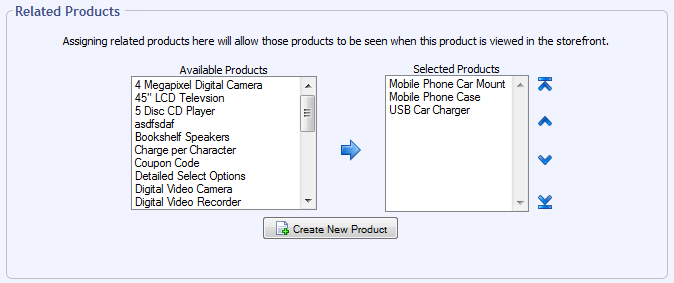
- Select a related product from the Available Products field by clicking it's name. To select more than one, hold down the CTRL key (in Windows) or the Command key (on Mac OSX).
- Click the blue arrow to move the products to the Selected Products field
- Click
Deciding Where to Show Related Products
There are two places you can show related products by default.
Below Your Product Description
By default, related products should appear automatically after you assign them to a product (see above). The default location for this is below the product's description and pricing:
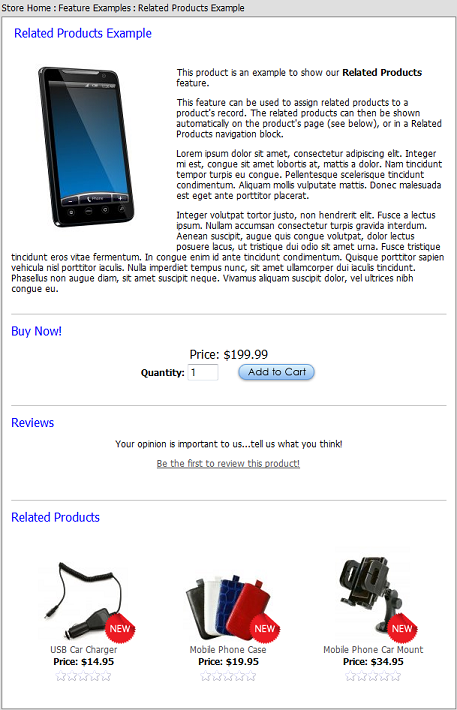
You should not normally have to do anything to make this happen, other than assigning the related products as described above.
 |
Not working? If you have assigned related products to a product, and don't see them in this location, you may need to add this to your product_detail.tpl.php template file:
For more info on how to modify template files, see this topic. |
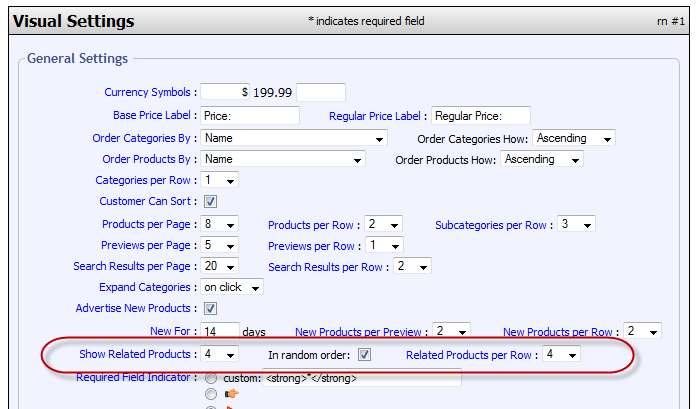
When using this method, you can control how many related products appear in total, how many appear per row, and whether or not they appear in random order. You can find settings for that on the Visual Settings page of the control panel:
Related Products Navigation Block
If you prefer, you can show related products using the Related Products navigation block:
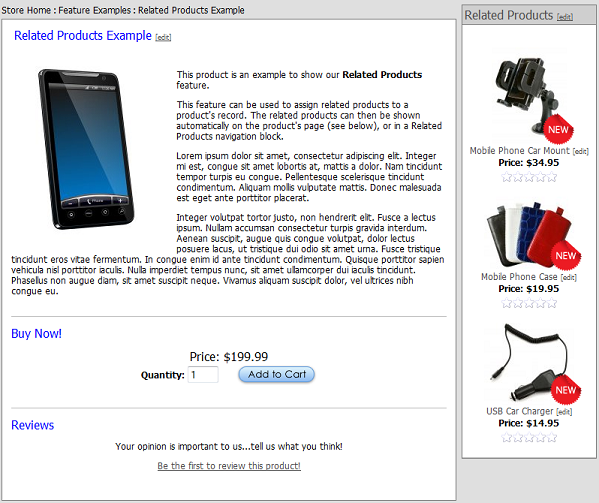
To do so, add the built-in Related Products navigation block to your storefront.
Controlling How Related Products Appear in the Nav Block
Related products are displayed in the nav block via this code that appears in the Content field on the Related Products nav block record in the control panel:
<?php
print sc_related_products(false,0,1,0,4);
?>
By default, up to a maximum of 4 related products will appear. To change that number, just change the last parameter in the nav block's Content field from a 4 as you see above to the number you wish to display. To display up to 10 related products, the code would look like this:
<?php
print sc_related_products(false,0,1,0,10);
?>
The 4th parameter in this function can be used to change the sort order. When set to 0 as shown above, related products appear in the order they are assigned on the product's record. If you would prefer to show products in a random order, change this 0 to a 1:
<?php
print sc_related_products(false,0,1,1,10);
?>
© 2001-2013 Lighthouse Development. All Rights Reserved.