Overview
Squirrelcart allows you to submit shipments directly to FedEx over the web. The shipments get assigned a tracking number, you print out the label, and the customer receives a ship notification email (if enabled). You can then attach the label to your package and drop it off at a FedEx location, drop box, or include it in your regularly scheduled pickup.
In order to use this feature, you must enable FedEx Ship Manager Direct.
Submitting a Shipment
- Initiate Shipment Process
You can start this process in 3 ways:
Method 1: From within an open order record (in edit mode), click the button.
OR
Method 2: When viewing the Shipments table, click the button.
OR
Method 3: Click the Ship Package menu link for FedEx: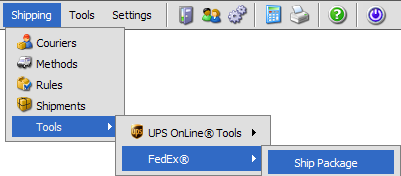
- Choose FedEx online shipment
Depending on the method you chose above, you may see a dialog similar to this: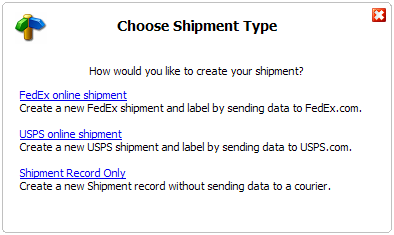
If you see this dialog:
Click the FedEx online shipment link.
If you do not see this dialog:
You will be taken right to the form shown in the next step. - Enter Order Number (optional)
If you chose Method 1 above, this step is skipped and the order number from the open order record is automatically assigned to the shipment. If you chose Method 2 or 3, you will see this form: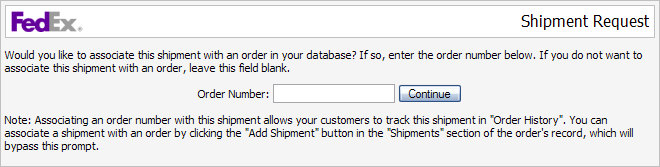
If you want to assign this shipment to an order, enter the order number in the Order Number field. If not, leave the field blank. Then click Continue.

Assigning a shipment to an order allows the customer to track the shipment in your storefront, and makes it easier for you to locate the shipment when viewing their order in the control panel. It also pre-populates the fields on the shipment form with the address information from the order. -
Fill Out Form
Fill out the form and click Submit.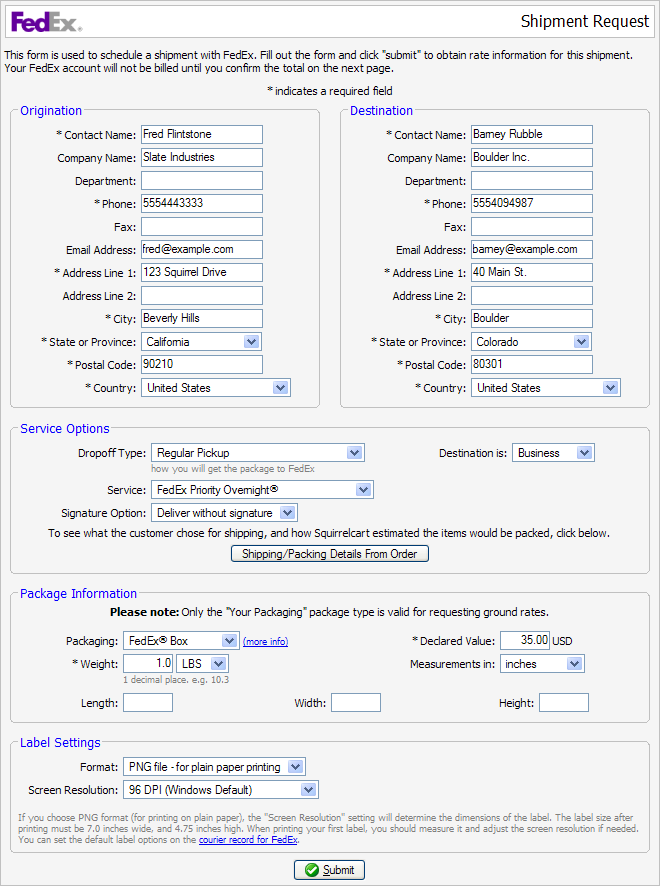
-
Confirm Rate Estimate
Click Yes, Submit Shipment to confirm the shipment.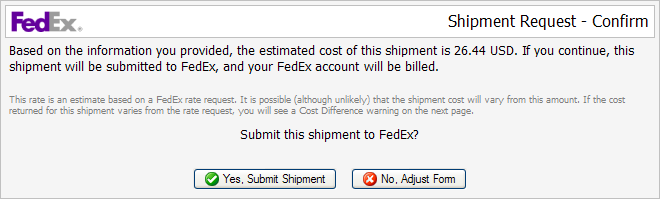
-
Print Label
Click OK to print label. When done, close the window.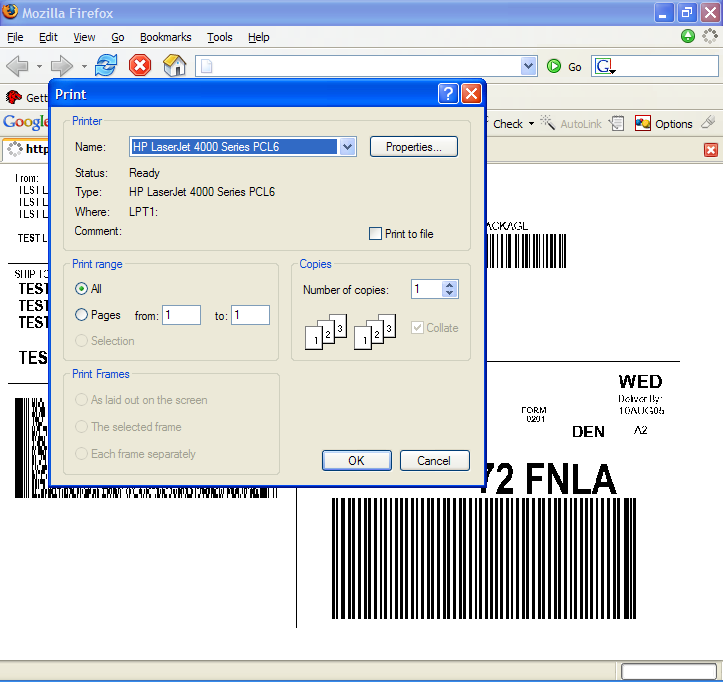
-
Final Results
The status of the shipment will be shown as follows: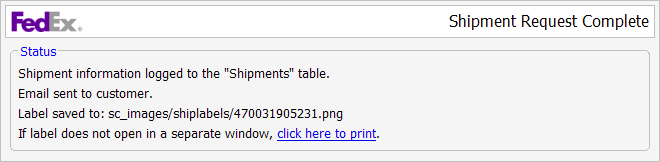
© 2001-2010 Lighthouse Development. All Rights Reserved.