PayPal Website Payments Pro allows you to accept payments through PayPal directly on your website, using Visa, MasterCard, American Express, and Discover. It also allows you to accept PayPal payments if the customer wishes to pay with their PayPal account instead of paying directly with a credit card.
More information on PayPal Website Payments Pro can be found here:
https://www.paypal.com/cgi-bin/webscr?cmd=_wp-pro-overview-outside
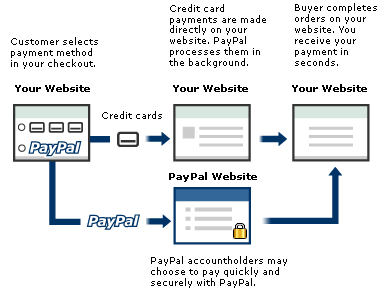
In the diagram above, when the customer pays using a credit card directly on your website, Squirrelcart makes use of PayPal's Direct API method. When the customer pays using their PayPal account, Squirrelcart uses PayPal's Express Checkout method.
Express Checkout
With Express Checkout, your customer can bypass Squirrelcart's address form. They are sent to PayPal to choose a shipping address, and funding method. PayPal sends them back to your site to choose their shipping method and to complete payment.
Website Payments Pro has the following requirements:
- As of this writing, only USD payments are possible with Website Payments Pro
- PayPal requires that you offer Express Checkout AND Direct (API) payments. Squirrelcart abides by this PayPal business requirement when you enable Website Payments Pro.
- Because Express Checkout must be offered, you cannot force the customer to create an account on your website (per PayPal's documentation). If Website Payments Pro is enabled, Squirrelcart will ignore the Force User Creation checkbox in your store settings if it is checked.
- Sign Up
You will need a PayPal Business account in order to use Website Payments Pro. If you do not have one, go to https://www.paypal.com and click Sign Up. Be sure to choose a business account when signing up. After you sign up, you will receive an email with confirmation instructions. Confirm your account, and then continue below. - Apply for Website Payments Pro
Navigate to Merchant Tools and select PayPal Website Payments Pro. Enter the required information about you and your business. You will be notified by email when your application review is complete; typically, applications are reviewed in one business day. - Accept Agreement
After you receive the approval email from PayPal, you must accept their billing agreement.
- Log in to https://www.paypal.com
- In the top left corner, click Accept Billing Agreement
- Stay logged into PayPal for the next steps.
- Add your bank account
You must have a bank account added to your PayPal Business Account. If you do not have one, you can add one as follows:- Click Profile
- Under Financial Information, select Bank Accounts
- Enter your bank account information
- Download a digital certificate
- Log in to https://www.paypal.com
- Click Profile
- Click API Access
- Click Request API Credentials
- Click the radio button next to API SSL client-side certificate
- Agree to the terms, and click Submit
- An API username and password will be generated for you. Write this information down.
- Click the Download Certificate button
- Upload certificate file
- Rename the file you downloaded to paypal_cert_key.pem
- Using FTP, upload the certificate file to your webserver. For security reasons, we recommend you upload it to a location that is above your web root folder so it is not web accessible. The sc_data folder is a good location for this, provided that you have Squirrelcart configured so that the sc_data folder is above your web root.
- Open the PayPal Website Payments Pro record in Squirrelcart
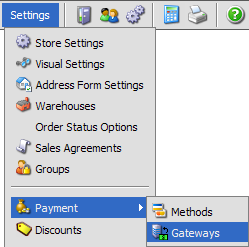
- Enter your API Username in the API Username field
- Enter your API Password in the API Password field
- Enter the full server specific path to your certificate file in the Certificate Path field, including the file name. Examples of paths are:
/home/youraccount/sc_data/paypal_cert_key.pem
C:/youraccount/sc_data/paypal_cert_key.pem - Leave the Meta Refresh?* field blank
- Choose your transaction type using the Transaction Type field. Mouse over the field name for more information.
- Check the Enabled field
- Set the PayPal Mode field to Live
- If you do not wish to gather shipping address information from PayPal, check the No Shipping field
- Click

PayPal's Instant Payment Notification allows you to integrate PayPal payments with Squirrelcart's order management feature. IPN provides immediate notification and confirmation of PayPal payments you receive, and allows Squirrelcart to update the payment status on orders in your database. If you activate IPN, you will receive an IPN when a payment is first received, which will display the status of the payment (Completed or Pending). If the payment status was Pending, you will receive another IPN when the payment clears, fails, or is denied.
Enabling IPN
- Login to your PayPal account at PayPal.com
- Click the Profile tab
- Click Instant Payment Notification Preferences
- Click Edit
- Click the checkbox, and enter the URL as follows:
http://www.EXAMPLE.COM/squirrelcart/paypal_ipn.php
Change the domain name to match your site. If you have installed Squirrelcart in a subdirectory, be sure to add that to the URL. For example, if your storefront page is http://www.example.com/store/store.php, then your IPN URL would be http://www.example.com/store/squirrelcart/paypal_ipn.php. - Click Save
- Open the PayPal Website Payments Pro record in Squirrelcart
- Check the IPN field
- If you wish to receive an email from Squirrelcart each time an IPN is received from PayPal, check the Test IPN field
- Click
* If after setting up and testing PayPal Pro you find that you are able to pay in your storefront using a credit card, but are not able to pay via a PayPal account, you may be experiencing a rare problem with session data loss. Try entering "yes" or "1" in this field, which will change the way customers are forwarded to PayPal and may resolve this particular problem.
© 2001-2009 Lighthouse Development. All Rights Reserved.