You can find more information on Payflow Link here: https://www.paypal.com/cgi-bin/webscr?cmd=_payflow-gateway-overview-outside&nav=2.0.3.
Our integration of Payflow Link allows you to accept credit card and electronic check payments.
 |
PayPayl Payflow Link used to be known as VeriSign Payflow Link |
There are no special requirements for Payflow Link. If you would like the customer to enter payment information on your website instead of PayPal's, you will need at an SSL certificate.
-
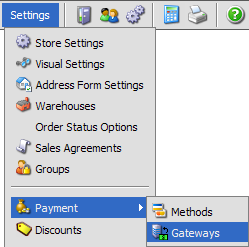
In your control panel, click the Gateways link
-
Click the record row labeled PayPal Payflow
-
Enter your PayPal PayFlow account name in the Merchant Login field.
-
Leave the Password field blank
- Enter your Partner ID in Partner ID. For most merchants the partner ID is VeriSign
- Set your Transaction Type.
- Set Connection Method to either of the two Client side methods (Server to Server is for Payflow Pro only). You can get more information on connection methods here.
- Check Enabled
- Click

- Login to PayPal PayFlow manager: https://manager.paypal.com/
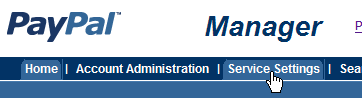
- Click Service Settings at the top of the page
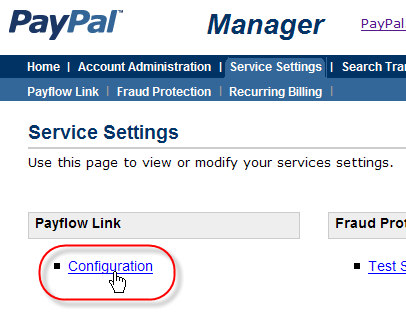
- Click Configuration link under the heading Payflow Link in the left navigation. If you do not see a Payflow Link section, you should contact PayPal support.
- Under the heading Form Configuration, set the Return URL Method field to POST
- Enter your storefront page URL in both Return URL and Silent Post URL fields. If you have an SSL certificate, you can use your secure URL (https://) otherwise use http://. Examples:
ORhttps://www.YourSite.com/store.php
http://www.YourSite.com/store.php
- Check the box directly after the Silent Post URL text, and right before the field following it.

Do NOT check Force Silent Post Confirmation or enter a URL next to it.
The Form Configuration section should now look something like this: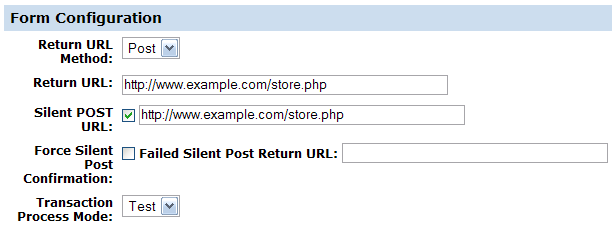
- Set the billing fields you would like displayed under Billing Information
- DO NOT check any fields in the Shipping Information section
- If you would like to put your account in test mode, set Transaction Process Mode to TEST
- Click the Save Changes button
To test, you will need to login to PayPal Payflow's manager, and set the Transaction Process Mode field to TEST.
You can then test with the following MasterCard CC#
5555555555554444
© 2001-2009 Lighthouse Development. All Rights Reserved.