Overview
Amazon Payments allows your customers to pay for their orders using their Amazon.com account - the same account they use to purchase products on Amazon.com. When enabled, customers will see an Amazon Payments payment method during the checkout process:
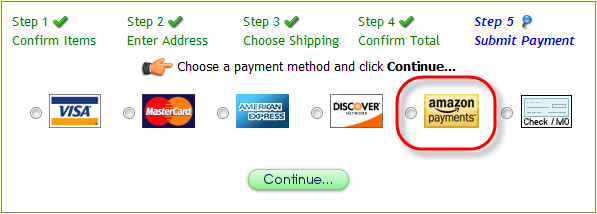
You can read more about Amazon Payments on their website: http://payments.amazon.com
Requirements
There are no special server requirements to use Amazon Payments (PBA - Payments by Amazon).
How it Works
- Customer selects Amazon Payments as a payment method during checkout
- Customer is sent to Amazon.com to submit payment, where they can login with their Amazon account or create one
- Customer selects a payment source from those listed on their Amazon.com account, and confirms payment
- Customer is returned to your website, and sees a thank you page and the order is stored in Squirrelcart's database
- At this point, the payment can have a status of successful, initiated, or reserved (meaning you then have to click "settle" in your Amazon Payments control panel upon shipment.
 |
Squirrelcart will complete the order as long as the status is either successful, initiated, or reserved. Payments with a status of initiated have not yet passed Amazon's internal fraud check and should not be shipped until Amazon updated the payment to a successful or reserved status. |
IPN Feature
Amazon Payments has an IPN feature, which stands for Instant Payment Notification. This feature is automatically enabled when you enable Amazon Payments. When you make any change to a payment in Amazon Payment's control panel, Amazon will notify Squirrelcart on your website of the change. Squirrelcart will update the IPN Log field on the corresponding order and add additional order status fields as needed.
Setup Instructions
- If you don't have an Amazon Payments business account, sign up for one here:
https://payments.amazon.com/sdui/sdui/premiumaccount
Follow the instructions they provide, including confirming your email address, and adding a bank account. - Go to the Amazon Web Services website:
http://www.amazon.com/webservices - Mouse over the button on the right hand side labeled Your Web Services Account, and click AWS Access Identifiers
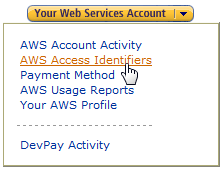
- You will be prompted to login. Login with the same user account (email address) and password you used for your Amazon Payments business account from step #1
- If you've never logged into Amazon Web Services before, you'll see a message saying You do Not Have an Amazon Web Services Account, like this:
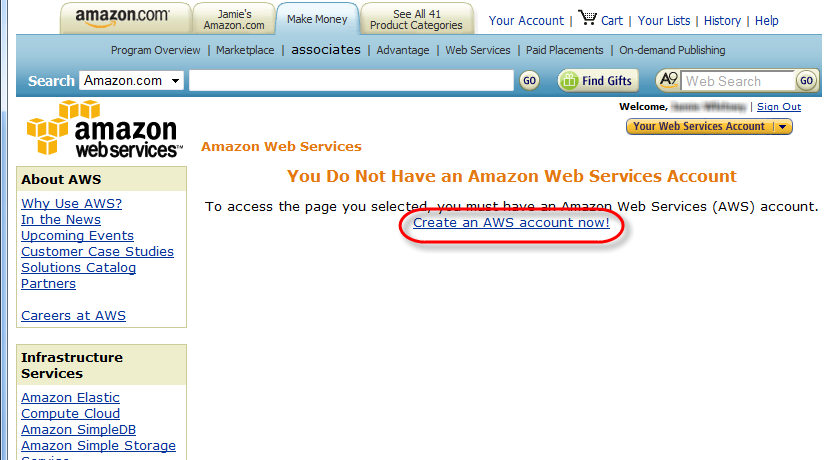
If you don't see this message, skip ahead to step #9. - Click the Create an AWS account now! link (see image above)
- Fill out the form and click continue
- You'll see a page similar to this:

Click the link at the bottom of the page labeled visit the Amazon Web Services home page, or just go here: http://aws.amazon.com - Mouse over the button on the right hand side again labeled Your Web Services Account, and click AWS Access Identifiers
- Towards the right side of the page, you should see this:
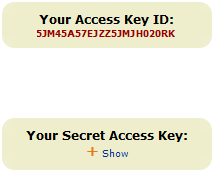
- Click the Show link under Your Secret Access Key so it will appear
- Copy both of Your Access Key ID and Your Secret Access Key (or write them down very carefully!)
- Login to Squirrelcart as store admin, and enter your control panel
- Enter your Payments Method table
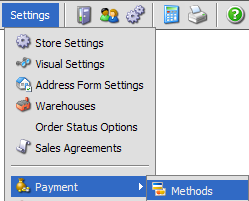
- Click the record row labeled Amazon Payments (PBA)
- Paste your Access Key ID in the Access Key ID field
- Paste your Secret Access Key in the Secret Access Key field
- Make sure the Amazon Mode field is set to Live
- Set the Transaction Type field. For help, click the field label
- IPN (Instant Payment Notification) will notify Squirrelcart whenever a change is made to a payment (refund, settle, etc...). To receive an email to the email address on your Amazon account every time an IPN occurs, check the Test IPN checkbox. This is for testing purposes and is optional.
- Check the Enabled field
- Click

Additional Steps
If your are using a new Amazon Payments account, no additional changes are needed. If you are using an account that you may have changed settings on previously, you shuold follow these additional steps to ensure your settings match the default for a new account.
- Login to your Amazon Payments business account here:
http://payments.amazon.com - Click Your Account
- Click Edit My Account Settings
- Click Manage Developer and Seller Preferences
- Confirm that Sign the buttons? is checked. If not, check it.
- Make sure all of the following fields are blank:
Return URL
User Abandon URL
URL for Instant Payment Notification - If you made any changes, click Confirm to save them.
Testing
Easy Way
The easiest way to test to see if your Amazon Payments setup is working is to create a product that costs $1.00 and set the shipping for that product to $0.00. You can then add that item to the cart and checkout using Amazon Payments. You'll need to submit payment using a different Amazon account then the one you are using for receiving payments.
Sandbox - not recommended for most users
Testing with Amazon's sandbox will take more time. Amazon's sandbox is geared towards developers and allows you to test payments on a test environment using different user accounts than their regular system. We don't recommend testing this way as it is more complicated and should not be needed for the average user. We don't provide support for using their sandbox, but here is the general idea of how to do this:
- Sign up for a sandbox business account here:
https://payments-sandbox.amazon.com/sdui/sdui/premiumaccount - Follow the setup instructions above, but when logging into the AWS website (steps 2 - 10) use the same account info you used when creating your sandbox account
- When modifying the Amazon Payments (PBA) payment method in Squirrelcart, set the Amazon Mode field to Test (Sandbox)
- Sign up for a sandbox personal account here, which you can use for sending test payments:
https://payments-sandbox.amazon.com/sdui/sdui/basicaccount - When done testing, you'll need to follow the setup instructions again using your regular Amazon Payments and AWS accounts.
Troubleshooting
The following information should help when troubleshooting problems submitting payments via Amazon Payments.
Signatures do not match
If you receive this error during checkout, it indicates that your Access Key ID and/or Secret Access Key entered in Squirrelcart are incorrect
payment failed
When a status of PF is returned from Amazon, Squirrelcart generates this error. This can be due to just about anything, and unfortunately Amazon does not provide more information as to why payment failed. This could be due to insufficient funds, fraud check failure, or other issues. If you are receiving this error and feel that you should not be, you'll need to contact Amazon Payments support for assistance.
 |
During testing with a live account, we received a payment failed status when the order total was $0.01. Changing the order total to $1.00 resolved this. |
© 2001-2008 Lighthouse Development. All Rights Reserved. Copy and Print Shops - please note: this is documentation and may be printed by anyone without violating our copyrights.