|
Viewing Records
|   |
|
Viewing Records
| |
1. Choose desired menu item
To view records, you will be clicking on different links in the menu system. For example, to view your products, click this link:
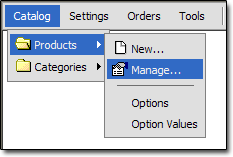
2. Viewing Records
You will then see a table that looks something like this:
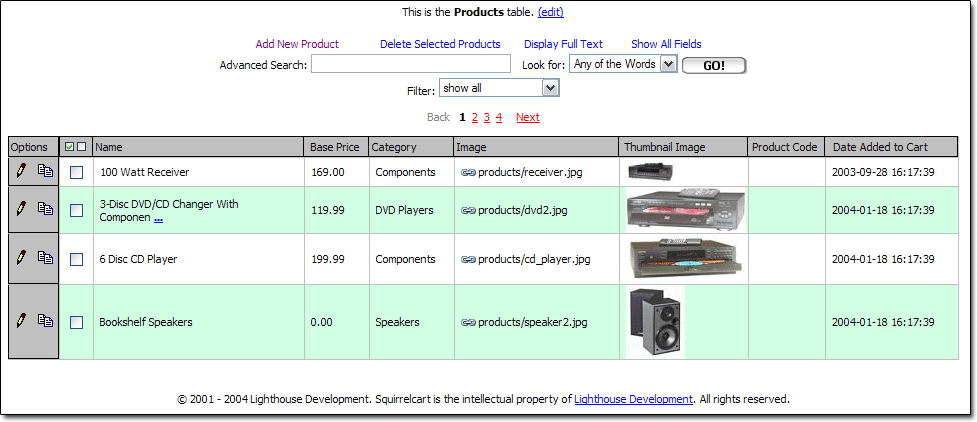
Below is an explanation of the links and icons:
Add New
- Adds a new record to the table. In this example, the link reads "Add New Product".
Delete Selected
- Deletes all records that have been selected
Display Full Text
- When text in certain fields appears truncated to save room, clicking this link will display all fields in their full length format.
Show All Fields
- By default, some fields do not show up in the table, to save horizontal viewing space. If you wish to view all fields in the table, click this link.
Advanced Search
- Searches the current table
Filter
- Filters the records in this table by certain criteria. For example, if you set "Filter" to "by Category", you could then choose "DVD Players" to view all products in that particular category.
Page Navigation

- This is used to navigate amongst multiple pages of records.

 Select All / Deselect All
- Select or Deselect all records on the page. This does not select records that are on subsuquent pages.
Sorting
- To sort records, click on the headers above each column.
 Edit
Edit
- Edit a record. You can also click anywhere on a row to edit the record.
 Copy
Copy
- Copy a record
 Select / Deselect
- Select or Deselect the record in the corresponding row
 Links
Links
- This icon is a link. In this case, it will open the image for viewing/editing. In other cases, a link could open another record, a URL, or an email.
Images
- If an image appears within a table, you can click on it, and will be taking to the advanced editing page. In this example, the "Thumbnail Image" column contains images.